 NL
 EN

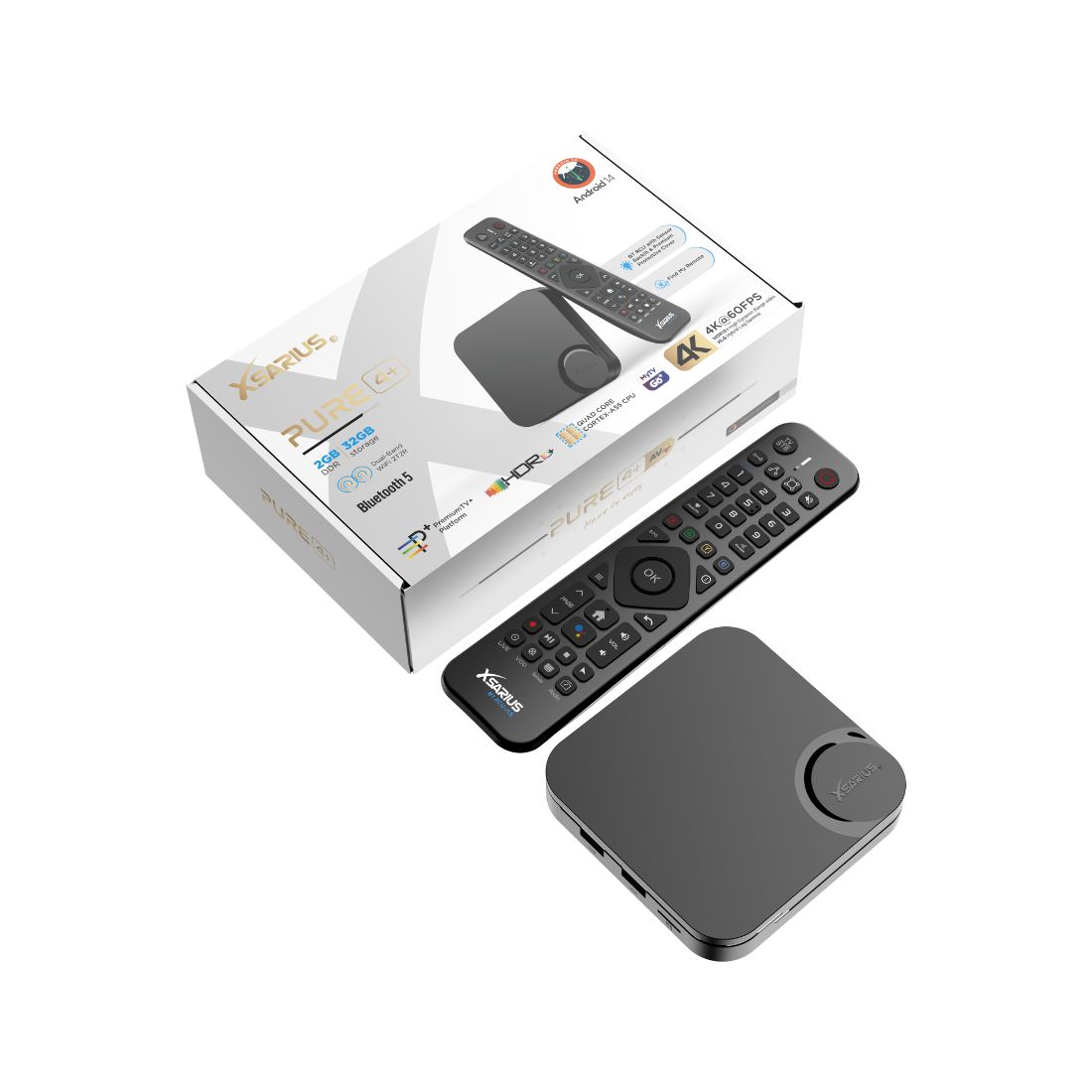
Menus, buttons and features vary by model and software version. Always check the name of your box and remote.
What you need
- Your Xsarius box and its correct original power adapter.
- A suitable HDMI cable and an available HDMI input on the TV.
- The Xsarius remote with suitable batteries, plus your TV remote.
- A network cable to the router, or your own wifi name and password.
Ports and accessories vary by model. Use only the correct power adapter and leave ventilation openings clear.
Follow the model manual when making physical connections: disconnect the equipment from power and connect the power adapter last.
Example: the Pure 4+ connections
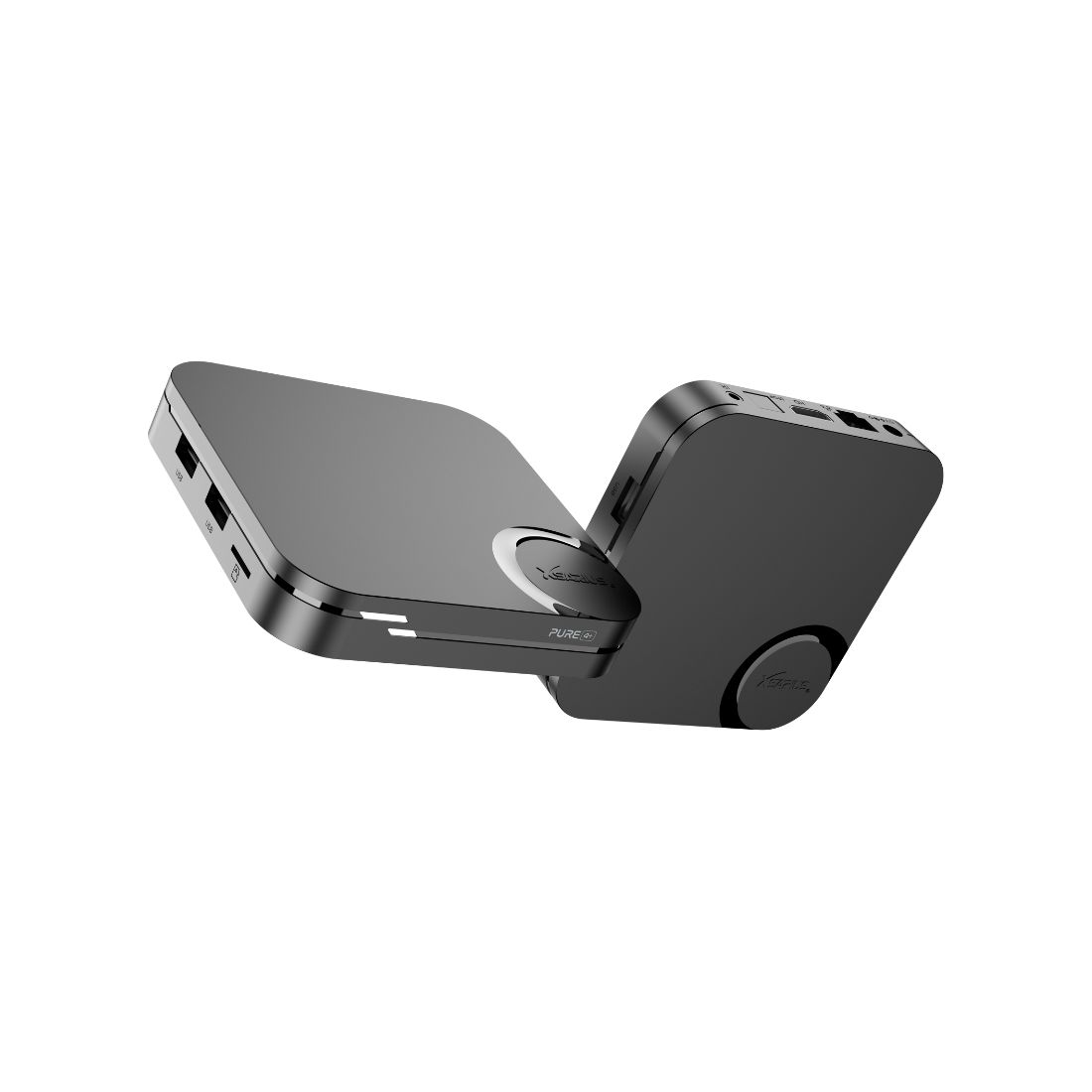
The factory manual identifies HDMI/HDTV for the TV, LAN for networking, DC IN for power, an IR extension port and S/PDIF optical audio. USB and the microSD/TF slot support suitable storage. An optical cable or USB drive is not needed for the basic TV connection.
Connect in five steps
- Connect HDMI. Connect the box’s HDMI output to a television HDMI input. Remember the number, such as HDMI 1.
- Connect a network cable if using one. Connect LAN to your router. If using wifi, configure it during or after first startup.
- Connect the correct power adapter. Plug it into the box and the wall socket. Turn on the device as instructed in its manual.
- Select the TV input. Press Source/Input on the TV remote and choose the same HDMI number as in step 1.
- Follow initial setup. Choose your language and network when asked. Android and Linux setup screens differ.
Check the basics first
If you see the home screen and the arrows work, try the basic controls. Then check the connection in the network menu.
Keep the first setup simple by connecting directly to the TV. Add a soundbar or receiver later using the relevant manuals. This makes signal-route problems easier to identify.
Still no picture?
Check that the selected HDMI number matches the physical port. Make sure both cable ends are fully connected. Try one other HDMI port or suitable cable if needed, changing one component at a time.
A black screen does not automatically mean the box is faulty. Follow the no picture or sound guide to narrow down the cause.
Connected equipment: what is included?
Connecting a media player does not automatically provide channels, a playlist or a subscription. Apps and functions depend on the model, software and chosen service.
ASAT.NL does not supply streaming services, channel packages or IPTV subscriptions, and does not support them. ASAT can help with purchasing, connecting and operating the equipment.
Frequently asked questions
Should I use the TV remote or Xsarius remote?
Use the TV remote to choose the HDMI input, then the Xsarius remote to operate the box. Combined TV control depends on your model and settings.
Is a network cable required?
Not if your model has suitable wifi. A cable is useful for an initial test because it removes the wifi link from the test.