 NL
 EN

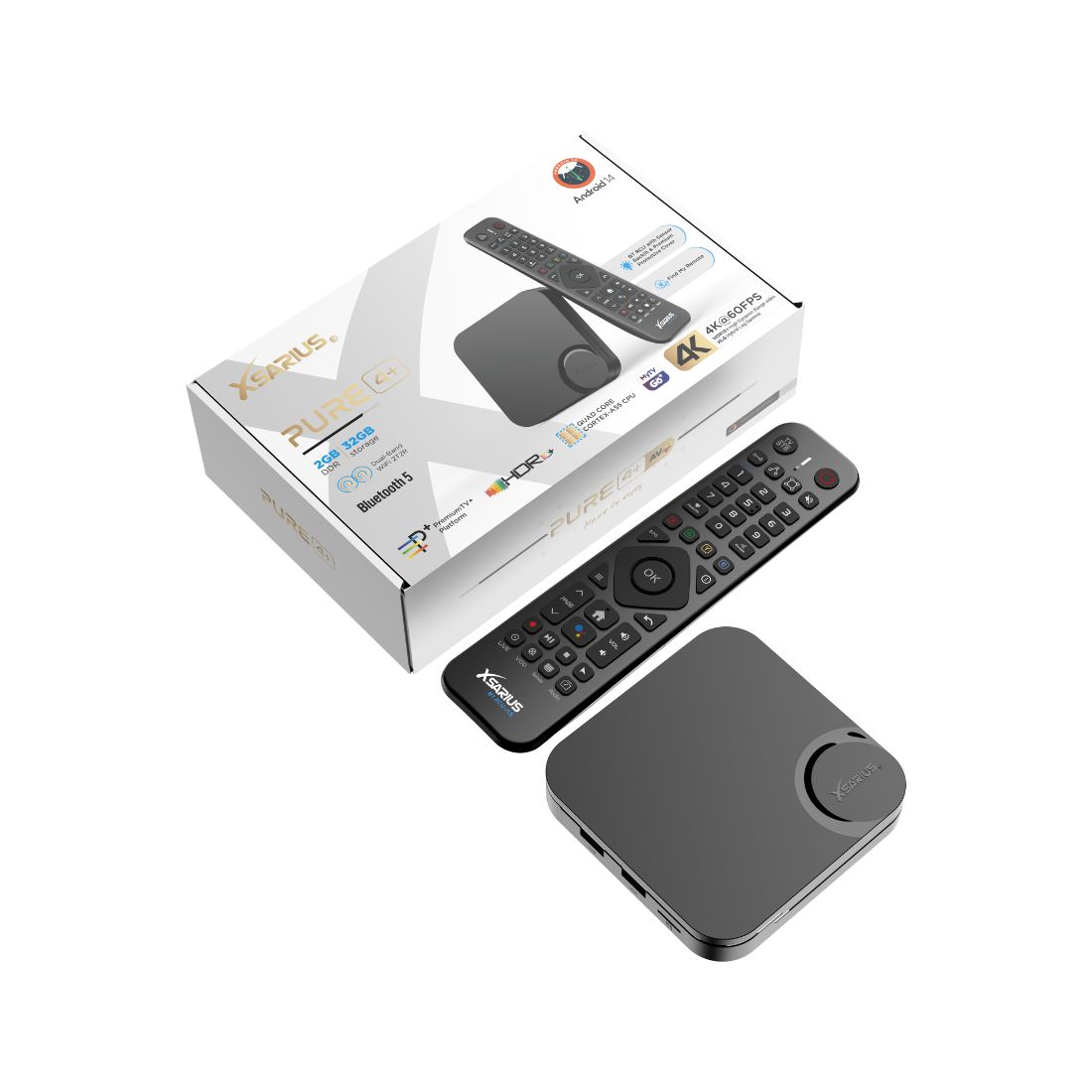
Menus, buttons and features vary by model and software version. Always check the name of your box and remote.
The television says ‘No signal’
- Check the box’s power. Is the correct adapter connected and the box switched on?
- Check the TV’s HDMI input. Use Source/Input to choose the physical port connected to the box.
- Check both cable ends. Try another suitable HDMI cable or another TV port if needed.
- Test directly on the TV. Temporarily leave out a receiver, splitter or soundbar to exclude those parts of the signal route.
Change one component at a time and note the result so you know what helped.
Picture but no sound
- Check mute and volume. Check the TV, box, current app and any attached audio system.
- Check the selected sound output. Follow the TV and audio-system menus for the connected speakers or soundbar.
- Test the TV speakers directly. Temporarily connect the box directly to the TV to help identify an issue with an intermediate device.
- Test another source or app. If only one source has no sound, check its available audio track or ask its provider.
Audio formats and passthrough options depend on the box, TV and receiver. Change these settings according to their manuals, not instructions for a different model.
Restarting and updates
If the box responds, use a normal restart from its menu. Do not interrupt an update installation. Use only updates intended for your exact model.
A factory reset can remove settings and app data. Do not make it the first test for a cable, volume or remote-control problem. Discuss a frozen device with ASAT before taking more disruptive steps.
Help ASAT identify the equipment problem
Note the full model name, what you see on the TV, whether the box menu is accessible and which cables and intermediate devices are connected. Include the checks you have already made.
A photograph of the connections or message can help; keep passwords, account details and personal information out of view. ASAT helps with equipment. Contact the relevant provider for external streaming-service issues.
Frequently asked questions
Is my box faulty if the TV says ‘No signal’?
Not necessarily. Check power, the selected input and the HDMI cable first. Test directly on the TV before identifying the box as the cause.
Can ASAT fix missing channels or an expired playlist?
No. ASAT.NL does not supply or support streaming services, channel packages or IPTV subscriptions. Contact your own provider.