 NL
 EN

Menus, buttons and features vary by model and software version. Always check the name of your box and remote.
Identify your remote first
Note the full model name of the box, including any plus sign or BT designation, and the remote’s type. Check its casing, battery compartment or packaging.
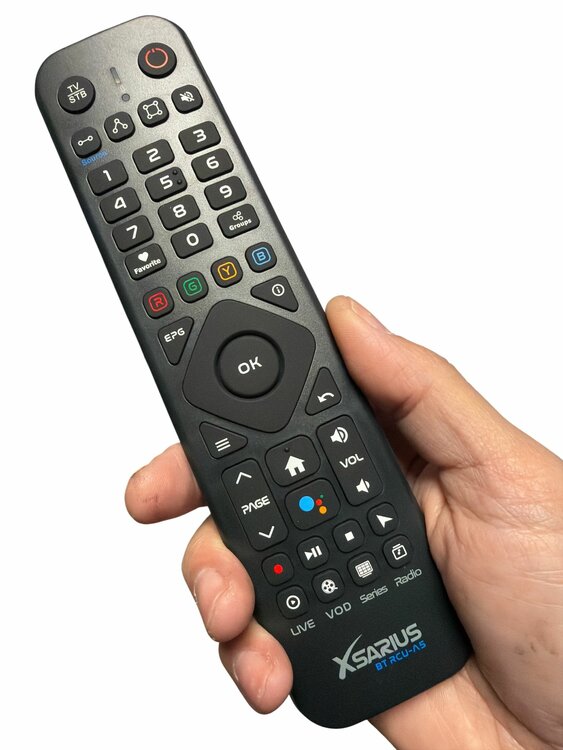
BT RCU-A5
ASAT lists this backlit IR and Bluetooth remote for the Pure 4+ and Avant 4+ Ultra. The photograph on this page shows the A5.
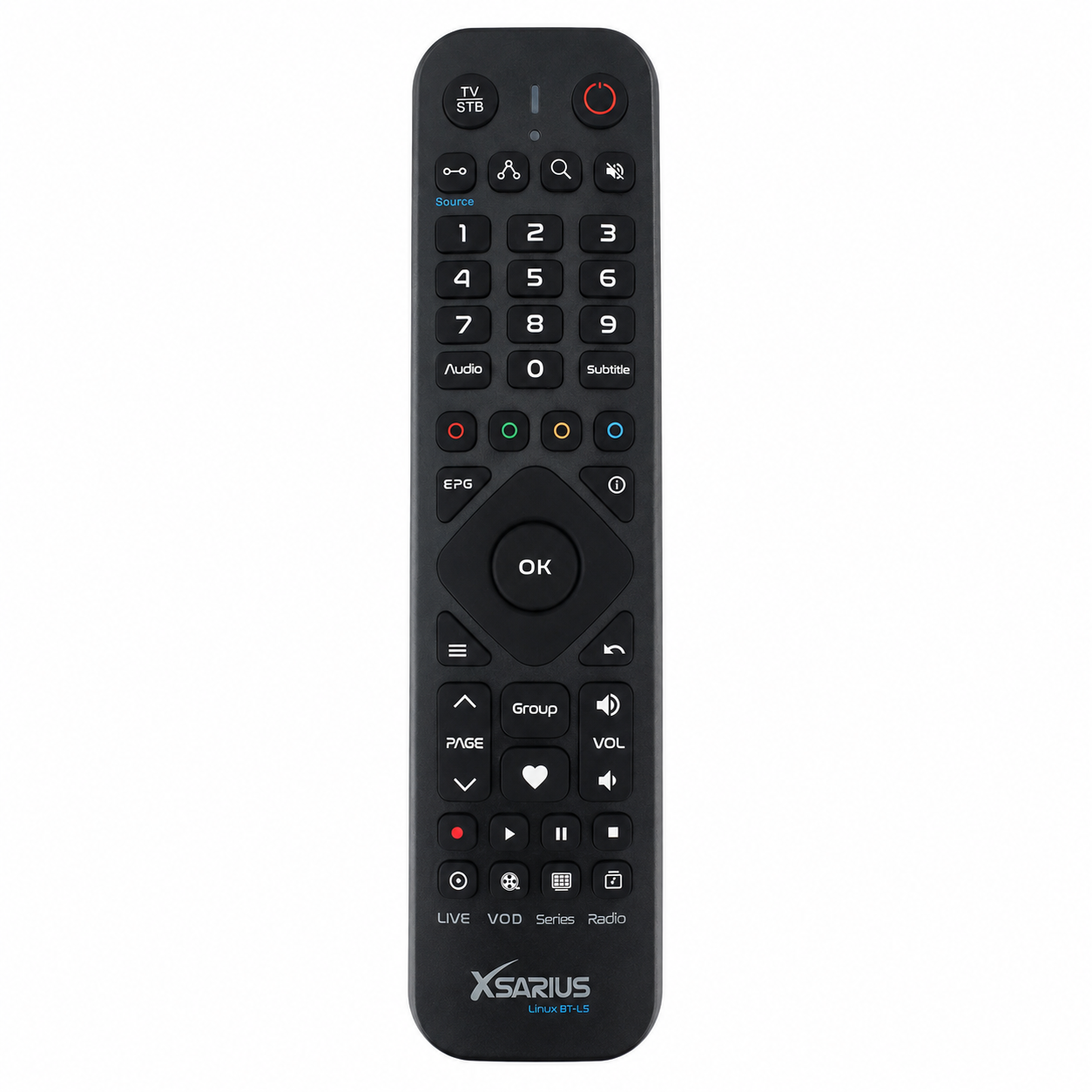
BT RCU-L5
ASAT lists the L5 remote as included with the Sniper 3 BT. Bluetooth on that box is for the remote, not Bluetooth audio accessories.
A similar shape does not make remotes interchangeable. Check exact compatibility before ordering a replacement.
What do the buttons do?
Open a button group to read more. Other remotes may omit some keys, and special functions can vary between applications.
Arrows, OK, Back and Home
Arrows move the selection. OK confirms it. Back closes a window or returns one level. Home opens the home screen on supported models. See the everyday controls guide.
Power, TV/STB, volume and mute
Power controls the selected device function. A TV/STB key may switch between TV and box operation on a compatible remote. Volume and mute act on the configured target. TV control may require setup or programming first; follow your remote’s manual.
Numbers, PAGE, EPG and favourites
Number keys enter values or select items where supported. PAGE may move through lists. EPG opens a programme guide when the application provides one; the favourites key belongs to its favourites functions. Follow the current application’s instructions.
Red, green, yellow and blue
These are contextual buttons. Their functions are often labelled at the bottom of the screen. Only use yellow for subtitles, for example, when your screen explicitly assigns that function to yellow.
Play/Pause, Stop, REC and shortcuts
These control playback or application functions. LIVE, VOD, Series and Radio work only when supported by the software. The buttons do not include channels, a subscription or guaranteed recording support.
Menu, Info, Groups and voice control
Menu opens the current application’s functions. Info displays available information. Groups opens supported group lists. The A5 also offers a voice key and mouse mode; the L5 has different shortcuts, including Audio and Subtitle. Voice and source features depend on the box, software and application.
Infrared or Bluetooth: what changes?
Infrared (IR) uses a light signal. Point the remote at the box’s receiver and keep the front clear of cabinet doors or other obstacles.
Bluetooth uses a wireless connection to a compatible box and must be paired correctly. Which keys use IR or Bluetooth depends on the model and selected device function.
If your TV still responds to volume, that does not prove the Bluetooth link to the box is working.
Bluetooth pairing: choose the correct model instructions
Sniper 3 BT with BT RCU-L5
These steps come from the Dutch Sniper III BT manual and apply to its L5 remote.
- Open Menu → Settings → Bluetooth RCU. The box displays its pairing screen.
- Hold OK and MENU together for five seconds. Wait until the LEDs keep flashing.
- Release both buttons. The manual says the remote then pairs. Test arrows, OK and Back afterwards.
Pure 4+ or Avant 4+ Ultra with BT RCU-A5
We have not found a verified A5 Bluetooth button combination in the manufacturer documentation checked so far. Do not automatically apply the L5 shortcut above. Follow the pairing prompt or instructions supplied with your remote. If you can still control the box, look for its remote, accessory or Bluetooth menu.
If you cannot open the menu, check batteries, device mode and a clear path for IR first. Do not remove existing pairings at random. Give ASAT the exact box and remote names if you need equipment assistance.
Using the RCU-A5 with your television
Want to use the A5 for TV power or TV volume? This is a separate setting from Bluetooth pairing with your Xsarius box.
The original Pure 4+ manual includes the A5 button overview but does not provide a verified TV learning procedure. We therefore do not specify an A5 button shortcut here. Programming steps for older A2, A3 or SET-button remotes do not automatically apply.
Have your A5, original TV remote and full television model number ready when asking for help. ASAT can then check the appropriate instructions for your combination.
View the A5 button overview (PDF, page 17; Dutch section) ↗
Download the original Pure 4+ manual (PDF, 18.9 MB; includes English and Dutch) ↓
Remote not working? Check these points
- Batteries. Check positive and negative orientation, then try a fresh set of the required type.
- Box and TV input. Is the box on, and are you viewing the right HDMI input? A wrong input can look like an unresponsive box.
- Direction and distance. Test IR functions nearby with a clear line of sight to the box.
- Device mode. Check TV/STB if your remote offers it. Test the arrows in the box menu.
- Only one app? Try Home or Back. If the main menu works, the remote has not stopped responding completely.
- Bluetooth and compatibility. Check the pairing procedure in the model manual. If the problem remains, give ASAT the model, remote type and checks you have completed.
Frequently asked questions
Will every Xsarius remote work with every Xsarius box?
No. Always check exact model compatibility. Bluetooth and similar-looking buttons do not automatically make a remote suitable.
Should I factory-reset my box?
Not as a first step. Check batteries, TV input, device mode and the correct pairing instructions first. A reset can erase settings and app data.
Check that this remote fits your box before ordering.