 NL
 EN

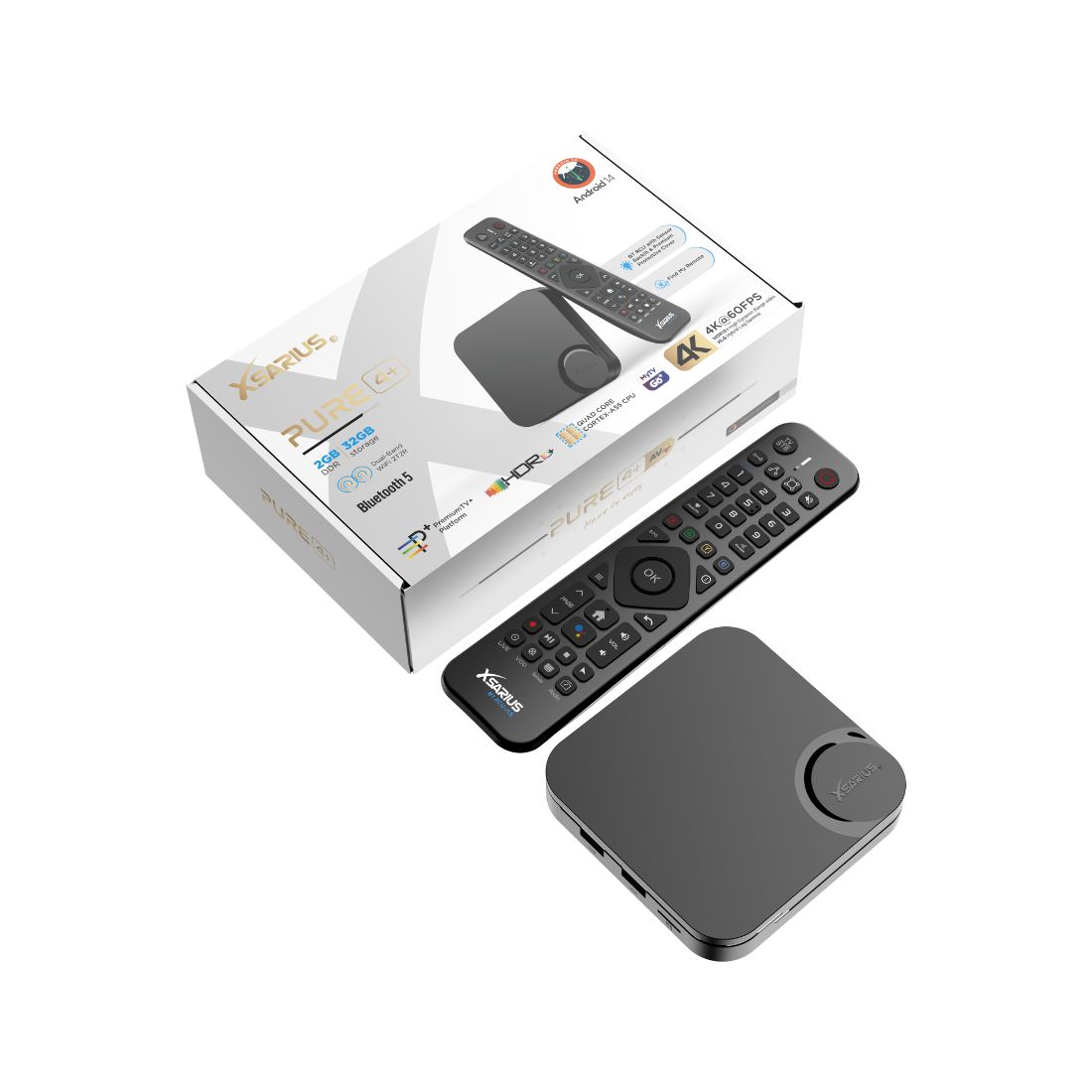
Menus, buttons and features vary by model and software version. Always check the name of your box and remote.
Connect using a network cable
- Connect the LAN cable. Run it from the box’s LAN port to a working LAN port on your router.
- Open network settings. Check that the wired connection shows as connected. The menu name varies by model.
- Check internet access separately. A connection to the router does not prove the router has internet access. Test another device on the same network too.
If the cable connection fails, try one other cable or router port. Leave advanced IP and DNS settings unchanged unless you know why they need changing.
Pure 4+: the factory manual specifies DHCP ON to obtain an IP address automatically. Use manual addresses only when instructed by your network administrator.
Set up wifi
- Open Settings. Find your box’s network or wifi menu. Its name and location vary between Android and Linux.
- Select your own network. Check the network name on your router or in your records.
- Enter the wifi password carefully. Check capital letters and similar-looking characters. This is your network password, not an app or streaming-service password.
- Wait for the connection status. Then check internet access. If the network is missing, check which wifi bands your box and router support.
Pure 4+ first setup: the manual describes unplugging the network cable to move to wifi settings. Select your network, then continue to the region and time-zone selection.
Wifi will not connect or keeps dropping
- Test closer to the router. Cabinets, walls and distance can affect reception.
- Check a second device. If that also has no internet, investigate the router or internet connection first.
- Try a network cable temporarily. If the box works over a cable, that helps isolate the wifi path.
- Restart at a suitable moment. Use the normal restart option. Consider other users before restarting the router.
Do not install random firmware or factory-reset the box just because wifi briefly drops.
Internet works but one app or channel does not
A connected network does not mean every external service is available. If other internet functions work but a playlist, channel or service login fails, contact that provider.
ASAT can help with equipment networking and operation. State whether you use wifi or a cable and which tests you have tried. Do not share network or account passwords through public forms.
Frequently asked questions
Is wifi always worse than a cable?
No. Results depend on signal, router, surroundings and the box. A cable is particularly useful to exclude wifi interference while troubleshooting.
Should I send ASAT my wifi password?
No. The model, connection method and error message are usually enough to discuss the problem. Keep passwords private.